
How to Customize OnePlan Timesheets by Hiding Comments and Progress

Updated: 2 days ago

Your team opens OnePlan to log their hours. They want to find the task, type the hours, and click Submit.
But every row has a Comments button nobody clicks. A Progress column sits at the far right, and nobody reads it. Small things. Together, they make a simple job feel busy.
One of our clients had this exact problem. We used a short piece of OnePlan Custom JavaScript to customize their OnePlan Timesheets. It's about a 10-minute job, and not one hour of their data changed. Here's how we did it, and how you can too.
At a Glance
Products | OnePlan Timesheets, OnePlan Custom JavaScript |
Who can set it up | A OnePlan administrator |
Time needed | About 10 minutes |
Prerequisites | Access to OnePlan configuration, Custom JavaScript enabled, and a test environment. The script also needs jQuery on the page. |
What it hides | The Comments button and the last column shown (Progress, if it is last) |
What it changes | The screen only. Timesheet data stays the same. |
Why Would You Hide Parts of a OnePlan Timesheet?
Our client's staff used OnePlan Timesheets for one job: entering hours. The Comments button and the Progress column weren't part of that job. They just got in the way.
We could change how OnePlan works, or change only what staff see. We chose the second. It was lighter, and it kept the client's data and process the same.
This fix makes sense when:
Your staff only enter hours, and extra buttons cause questions.
You want to hide items, not remove a feature for everyone.
Progress is always the last column in your timesheet layout.
It doesn't make sense when you need to stop people from commenting. The script only hides the button on the Timesheets page.
Want the bigger picture? See our OnePlan consulting hub for planning and running OnePlan.
How Does the Script Work?
The script does three things:
It hides the Comments button, using the icon's CSS classes.
It hides the last visible column in the header and in each row. For our client, that was Progress.
It keeps up as the page changes. A MutationObserver runs the script again when you add rows or switch periods.
A small marker (data-ts-hidden) stops it from hiding a second column by mistake. The script deletes nothing and changes no timesheet entries.
How to Customize OnePlan Timesheets in 5 Steps
Try this in a test environment before production.
Step 1: Turn on Enable Customizations
First, make sure custom code is allowed. Go to https://my.oneplan.ai/config/advanced. Check that the Enable Customizations box is checked.


Step 2: Open the Custom JavaScript editor
Open the editor at https://my.oneplan.ai/config/js

Step 3: Paste the script
Your script starts like this:
var TS_GRID_ID = "TimesheetGrid";
Fill in the short form below to get the full script. Then paste it into the Custom JavaScript editor.
Check two things first:
The script hides the last visible column, not Progress by name. Use it only if Progress is always last in your Timesheet layout.
The script needs jQuery on the page.
Step 4: Save and refresh
Click Save in the Custom JavaScript editor.
Go to the Timesheets page.
Refresh your browser.
Step 5: Check before and after
Before, each row had a Comments button, and Progress sat at the far right.

After, both were gone. The TOTAL column and the other row icons stayed in place. Did a different column disappear? Then Progress wasn't your last column, so remove the script.
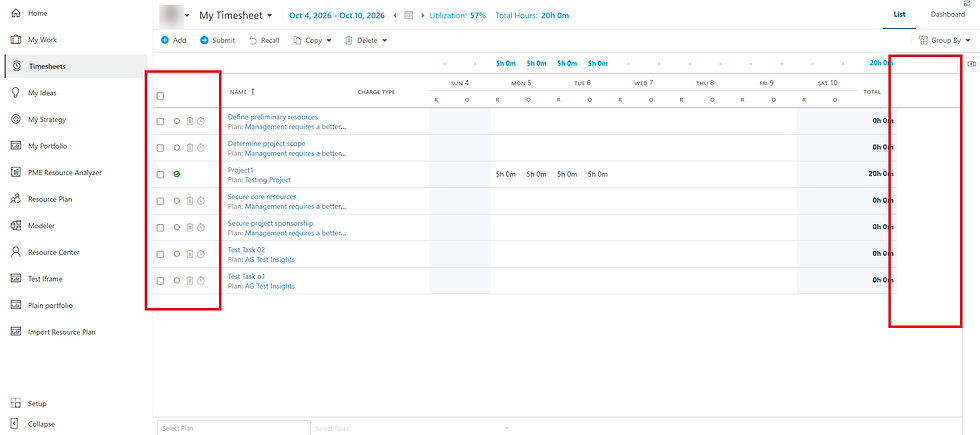
Then use the page the way staff will. Switch periods, add rows, refresh, and enter some time. The two items should stay hidden, and time entry should still work.
How Do You Undo It?
Go to the Custom JavaScript configuration page.
Remove the code for this customization. Leave any other custom code in place.
Click Save, then refresh the Timesheet page.
The Comments button and the column come back if your OnePlan configuration has them switched on. Your timesheet data never changed, so there is nothing to restore.
Why We Set It Up This Way
The client wanted a cleaner screen with no change to how staff record hours. Custom JavaScript did that without touching timesheet records or business processes. So we passed on changing core OnePlan functionality. We advised the client to retest the script after OnePlan updates and whenever the column layout changes.
Lessons for Anyone Customizing OnePlan Timesheets
Check every timesheet view. Try the script in a test environment first, on each view your staff use.
Confirm the column order. The script hides the last column shown. If someone moves Progress, the wrong column disappears.
Watch for OnePlan updates. The script relies on TimesheetGrid and ms-Icon--Comment. If OnePlan changes these, retest. Our OnePlan support team can help.
Watch for OnePlan updates. The script relies on TimesheetGrid and ms-Icon--Comment. If OnePlan changes these, retest. Our support plans can help.
Frequently Asked Questions
Can I hide the Comments button in OnePlan Timesheets?
Yes. Custom JavaScript and CSS can hide it. Your environment must allow customizations, and the script must match the current page layout. It does not turn off comments across OnePlan.
Will hiding the Progress column delete any data?
No. The script only changes what shows in the browser. It does not delete or change Progress values stored in OnePlan.
Will the script work if my Timesheet layout is different?
Only if Progress is your last visible column. The script hides the last column shown, not Progress by name. If Progress isn't last, don't use the script as written.
Need OnePlan Set Up Your Way?
Every organization runs timesheets differently. Project Made Easy helps teams configure and customize OnePlan to fit how they work. That runs from small timesheet changes to full rollouts.


Comments